ScreenCrop: using the half of my MacBook screen that still works
I was rearranging my desk. My tower speaker, a Vanatoo Transparent Zero sitting on a one-foot stand, tipped over and landed perfectly on the lid of my MacBook Pro. Not near it. On it.
The Mac survived. The screen mostly survived. The right edge did not: there is a dent in the lid, and behind it a dead strip about 200 points wide, top to bottom.
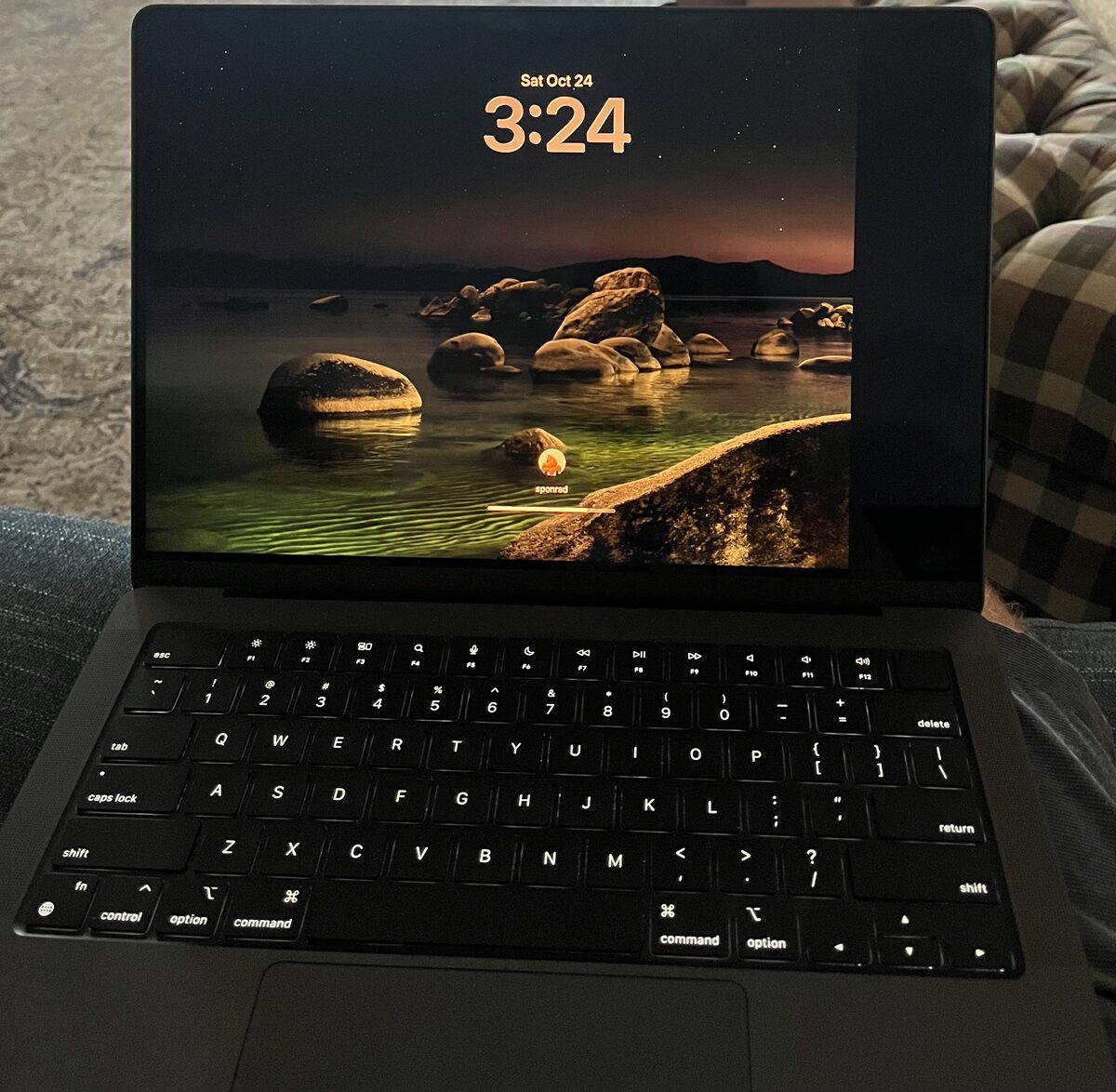
The laptop is out of warranty, so a new display looks like $600 to $800. I will probably get it fixed. In the meantime the left 1300 points of the screen work fine, and I wanted to use just those.
What I tried
macOS will not do this on its own. Every resolution setting scales or centers the whole picture, so the dead strip always eats the right side of something.
SimpleDisplay is free and can create virtual displays, but the trick I needed (mirror a smaller virtual display onto the built-in screen) is blocked on macOS 26 because it crashes the window server.
BetterDisplay does exactly this. It even has a guide titled “Use the working part of a damaged screen.” The feature needs the Pro license, and the trial proved the idea works. Credit to them for that guide.
ScreenCrop
So I wrote ScreenCrop, a tiny menu bar app that does just this one thing.
It creates a virtual display the size of the working area and makes it the main display. It streams that display, pixel for pixel, into the top-left corner of the built-in screen and paints the rest black. Your menu bar, Dock and windows all live in the part of the screen that works.
- Press Control+Option+Command+C to turn it on or off.
- When an external monitor is plugged in, it pauses and the monitor works normally.
- If it quits or crashes, macOS removes the virtual display and the normal screen comes back.
Under the hood it uses CGVirtualDisplay (a private CoreGraphics API, the same one DeskPad uses) and ScreenCaptureKit. About 400 lines of Swift.
The default working area is 1300 × 982 points, the left part of a 14-inch MacBook Pro. If your damage is a different size, change it:
defaults write com.sponrad.ScreenCrop width -int 1300
defaults write com.sponrad.ScreenCrop height -int 982
It only crops from the top-left corner for now. If your dead strip is on the left or the bottom, open an issue.
Get it
Download the latest build from the GitHub releases, drop it in Applications, and clear quarantine if macOS complains:
xattr -cr /Applications/ScreenCrop.app
open /Applications/ScreenCrop.app
Then allow ScreenCrop under Privacy & Security → Screen & System Audio Recording, and open it again.
https://github.com/sponrad/screencrop
And keep your speakers away from the edge of the desk.